

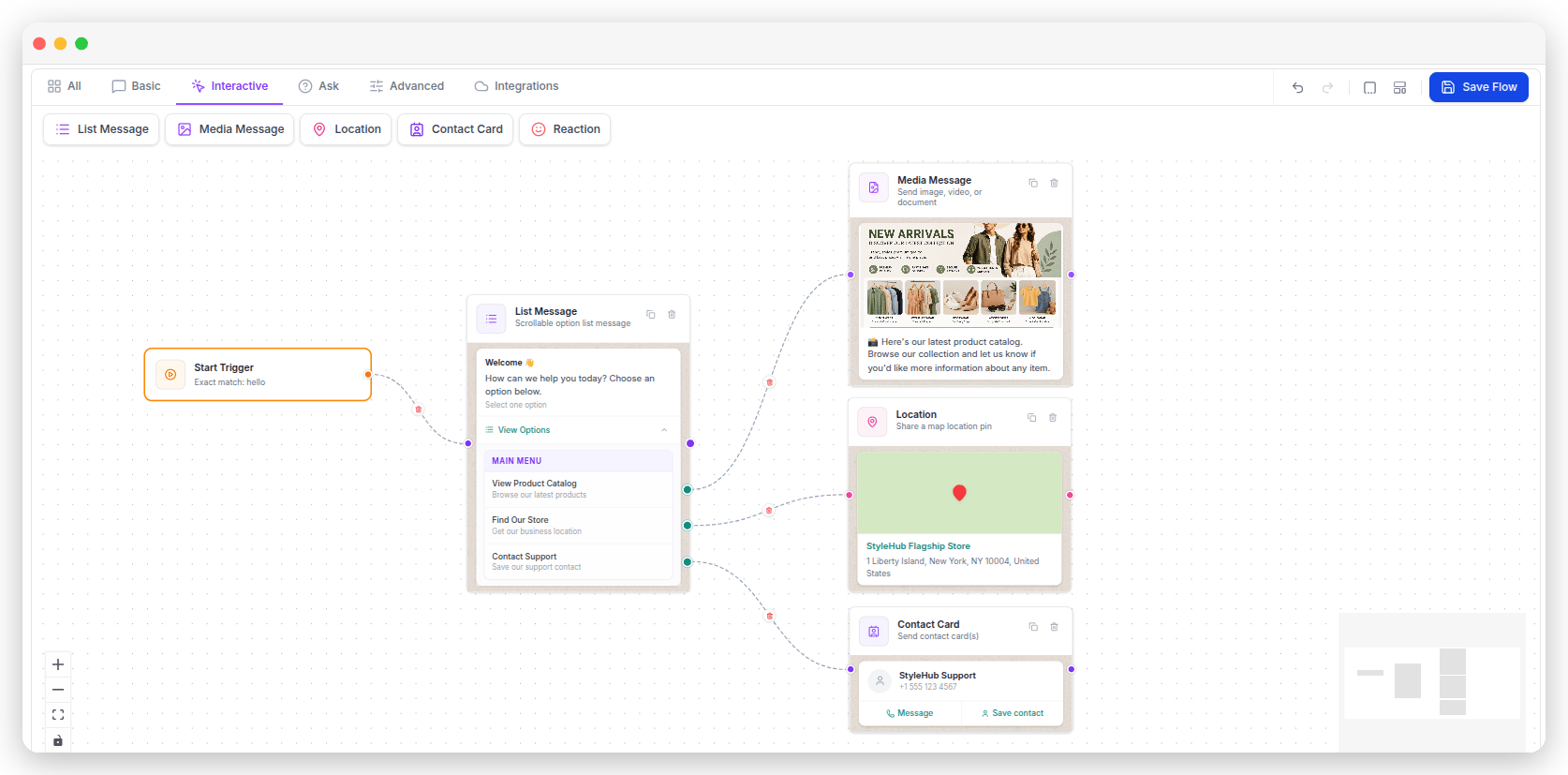
List Message
What it does. Sends a message with a button that opens a list of options. Each option can lead to a different step in your flow. When to use it. Use a List Message when you want customers to choose from several options. It’s a better choice than Button Messages when you have more than three options. How to set it up.- Fill in the Body Text, and optionally a Header and Footer.
- Set the Button Text — the words on the button that opens the menu, such as
View options. - Create one or more sections and add your list items. Then connect each item to the next step in your flow.
- Body Text is required, and supports up to 1,024 characters.
- Button Text is required, and supports up to 20 characters.
- Header and Footer are optional, up to 60 characters each.
- You need at least one Section, with a title and at least one item.
- You can add up to 10 sections, but no more than 10 items in total across all of them.
- Section and item titles are limited to 24 characters, and item descriptions to 72 characters.
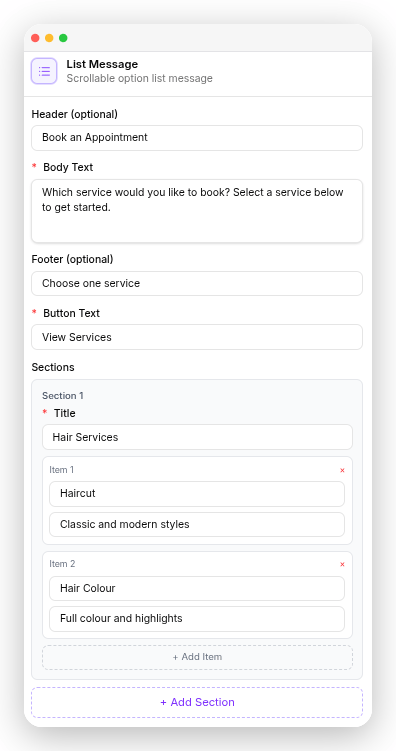
Body Text: Which service would you like to book? Button Text: View services Section — Hair: Haircut · Colour · Blow dry Section — Nails: Manicure · Pedicure · Gel extensionsEach item leads to an Ask Question asking for a preferred date.
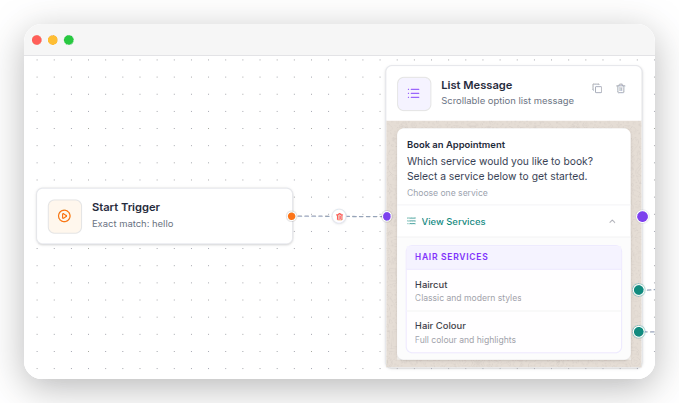
List Message is a WhatsApp-only step. It’s hidden on Messenger flows.
Media Message
What it does. Sends an image, video, audio file, document, or sticker. You can also add an optional caption. When to use it. Use it to share product photos, brochures, price lists, menus, user guides, or videos with your customers. How to set it up. Choose the media type, upload a file or select one from the Media Library, and add a Caption if needed. For documents, you can set the Filename the customer sees.- A file is required — upload one, or pick one from the Media Library, before the flow can be saved.
- Caption is optional, and supports up to 1,024 characters.
- Filename applies to documents only, and is optional. Leave it blank and the customer sees the name of the file you uploaded.
- Image — JPG or PNG, up to 5 MB.
- Video — MP4 or 3GP, up to 16 MB.
- Audio — AAC, MP3, MP4, AMR, or OGG, up to 16 MB.
- Document — PDF, Word, Excel, PowerPoint, or plain text, up to 100 MB.
- Sticker — WebP, up to 100 KB still or 500 KB animated.
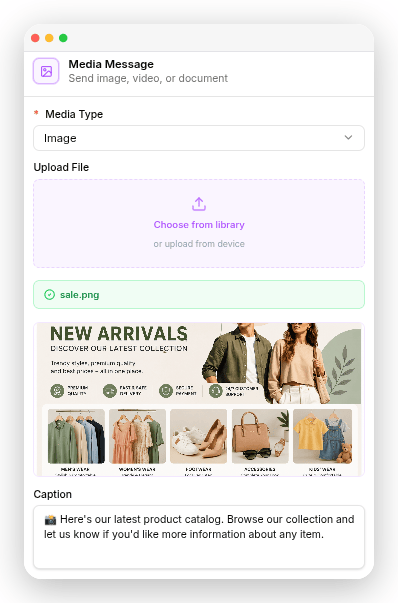
Type: Image File: sale.png Caption: 🛍️ Here’s our latest product catalog. Browse our collection and let us know if you’d like more information about any item.
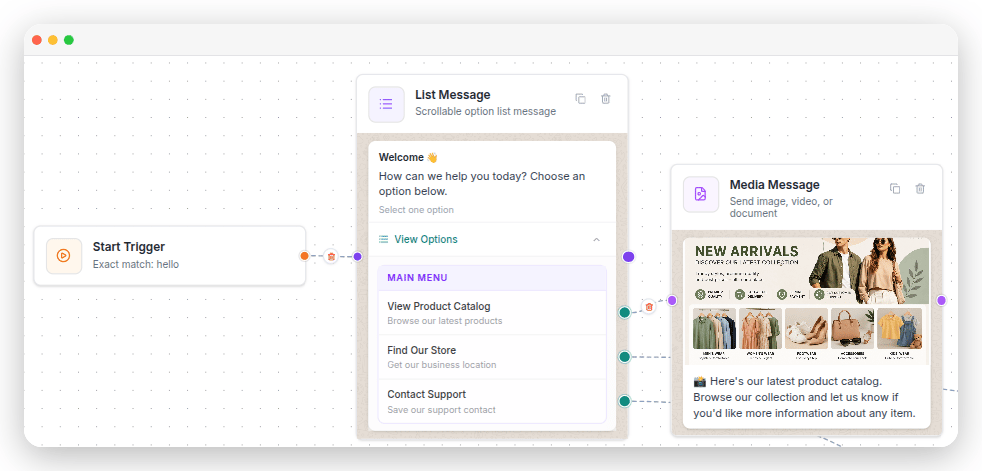
Location
What it does. Sends a location that customers can open for directions. When to use it. Use it to share your shop, office, clinic, restaurant, pickup point, or anywhere else a customer needs to find you. How to set it up. Use Search Location to find a place, drop a pin on the Map, or type the Coordinates in manually. Then enter the Location Name and Address.- Coordinates are required — a latitude between -90 and 90, and a longitude between -180 and 180. Searching for a location or dropping a pin fills them in automatically.
- Location Name supports up to 100 characters.
- Address supports up to 200 characters.
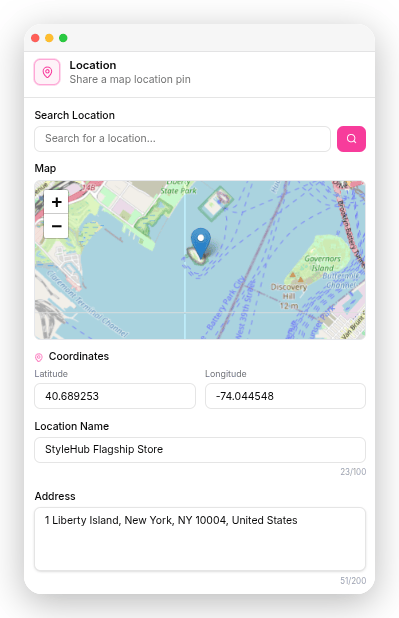
Location Name: Sunrise Cafe Address: 12 Park Road, Mumbai 400001
Contact Card
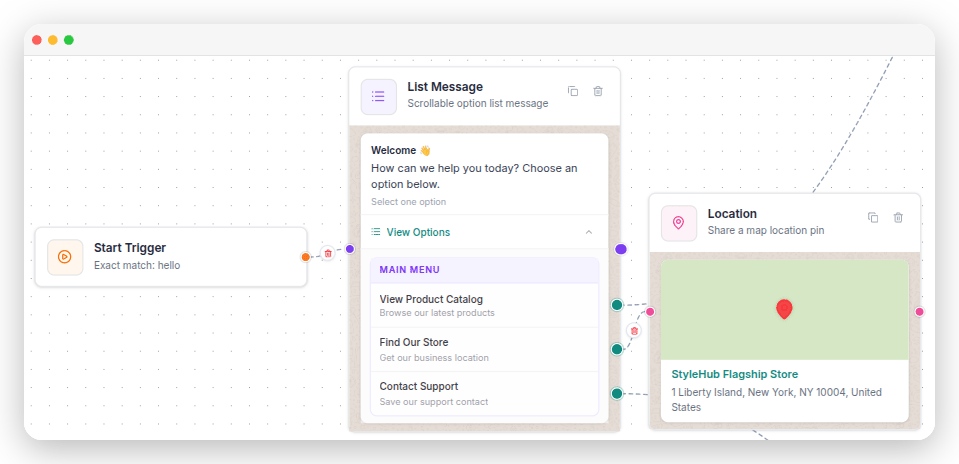
What it does. Sends a contact card that customers can save to their phone. When to use it. Use it to share a salesperson’s contact, your support number, or another business contact. How to set it up. Enter the contact’s First Name, Last Name, and Phone. You can also add an Email, Company, and Title.- First Name, Last Name, and Phone are all required.
- Email, Company, and Title are optional.
- First Name, Last Name, Company, and Title each support up to 100 characters.
- Email supports up to 320 characters.
- You can send up to 20 contact cards in one step.
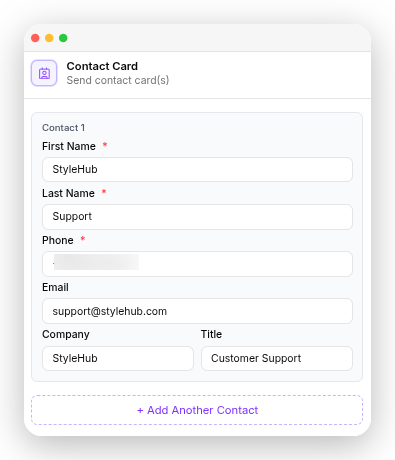
StyleHub Support · Customer Support · StyleHub · [email protected]
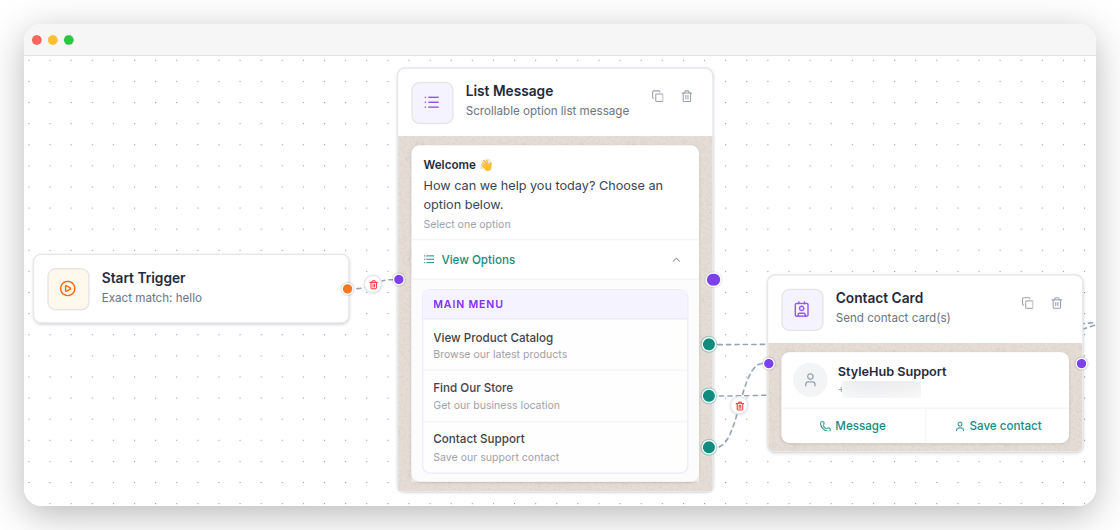
Contact Card is a WhatsApp-only step. It’s hidden on Messenger flows.
Reaction
What it does. Adds an emoji reaction to a customer’s message instead of sending a new message. When to use it. Use it to quickly acknowledge a customer’s message without sending a reply. How to set it up. Pick an emoji from the list. The reaction is automatically added to the customer’s most recent message.- An emoji is required. Pick one from the list shown — you can’t type your own.
- Message ID is required. It comes pre-filled with
{{last_message_id}}, which reacts to the customer’s latest message — leave it as is, or replace it with a different merge field to react to a specific message.
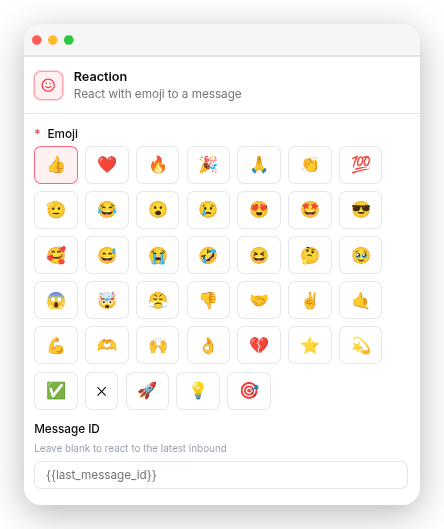
Confirm booking, add a Reaction with 👍 so they can see it registered straight away, then send the confirmation text.
Reaction is a WhatsApp-only step. It’s hidden on Messenger flows.
A worked example
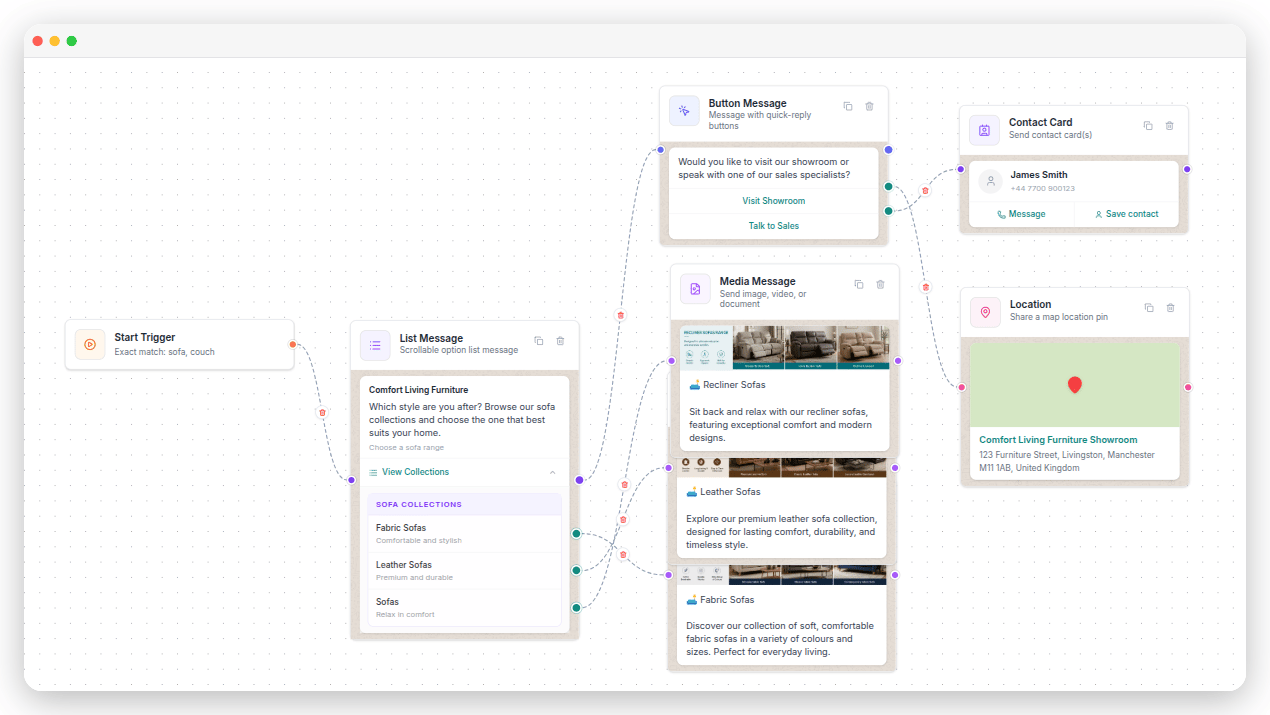
A furniture shop answers a product enquiry:- Start Trigger — When message contains
sofa,couch. - List Message — “Which style are you after?” with sections for Fabric, Leather and Recliner.
- From each item, a Media Message with photos of that range.
- A Button Message —
Visit the showroom/Talk to sales. - From
Visit the showroom, a Location with the shop address. - From
Talk to sales, a Contact Card for the sales manager.
Show Typing Indicator
Show Typing Indicator — Available on every flow step in this category except Reaction. When enabled, the customer sees a “typing…” indicator before the message is sent, making the conversation feel more natural.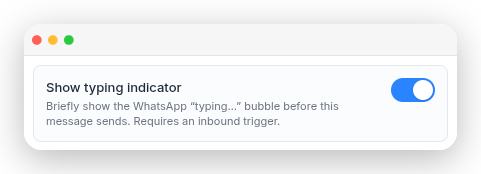
What’s next
Ask
Collect names, numbers, emails and files from your customers.
Advanced
Add waiting, branching, tagging and API calls.