

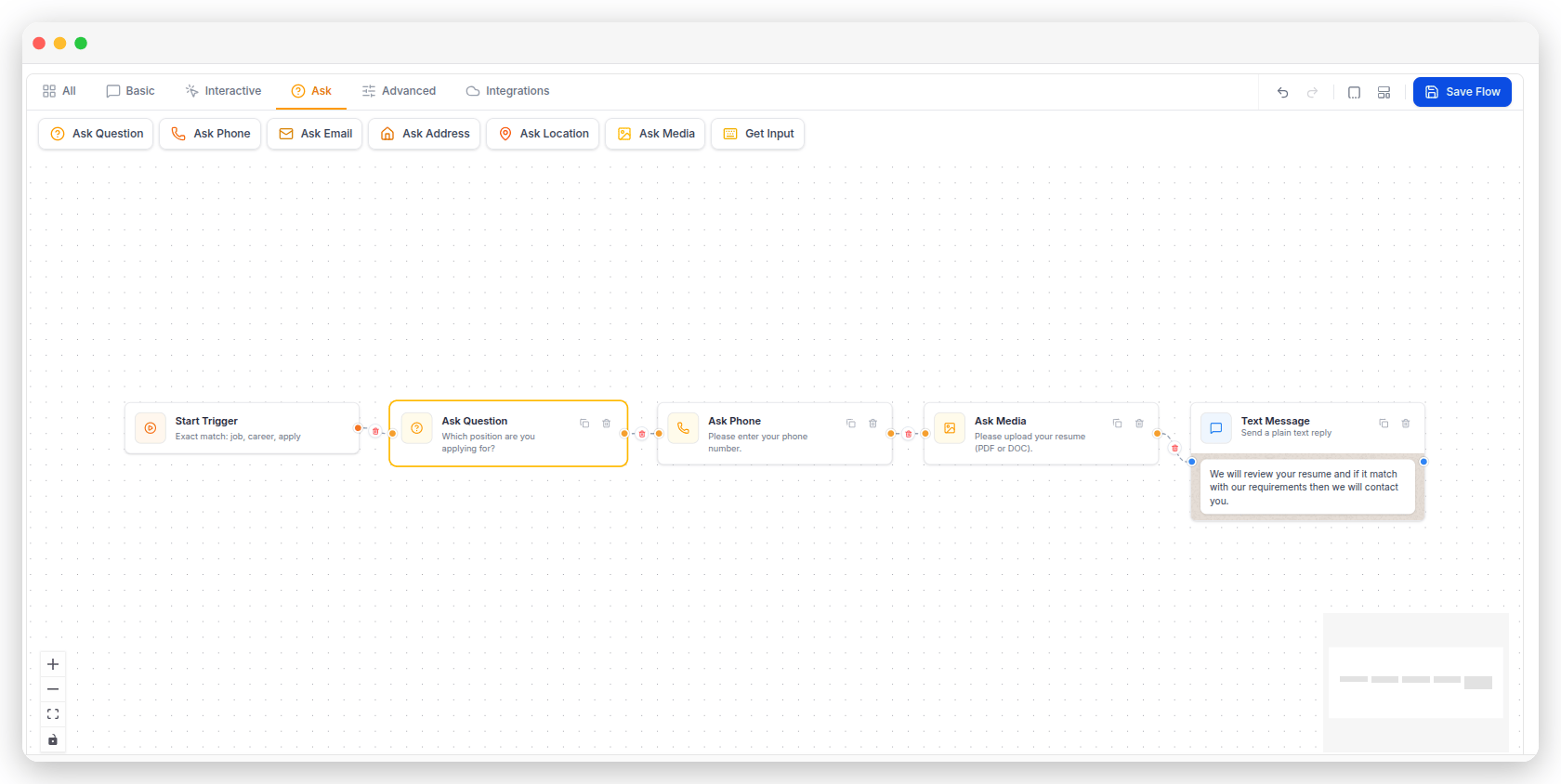
How every Ask step works
1
Write the question
Enter your question in the Question field. Depending on the step, this field may be called Question, Question Message, or Media Question. Type @ to insert a merge field, such as the contact’s first name.
2
Choose where to save the answer
Set the Capture Attribute field. This is where the customer’s answer will be saved. Give it a meaningful name, such as
preferred_date. You can save the answer to a customer field, or to a flow variable that’s only available during the current conversation.3
Set the retries
Number of Attempts determines how many times the chatbot asks the question again if the customer’s answer isn’t valid. Set it to
0 to accept the first answer without asking again.4
Write the retry messages
Validation Error Message is shown when the customer’s answer isn’t valid. You can use the default message or write your own. The same question is then asked again.
Ask Address and Ask Location don’t have the retry fields — they save whatever the customer sends.
Ask Question
What it does. Asks for anything and checks the answer against a format you choose: Text, Any, Number, Email, Phone, URL, Date, or a Regular expression pattern. When to use it. Use it to collect any text information, such as a customer’s name, order number, party size, preferred date, or review. Required fields- Question and Capture Attribute are required.
- Attribute Format sets what a valid answer looks like. It defaults to Any, which accepts whatever the customer sends.
- Pattern is required, but only if you set the Attribute Format to Regular expression.
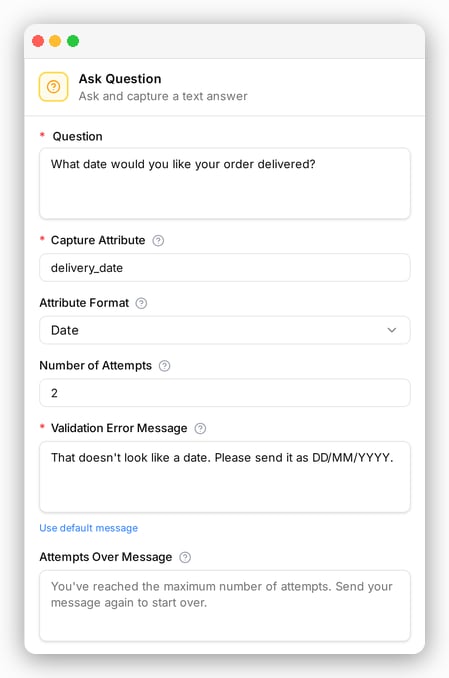
Question: What date would you like your order delivered?
Attribute Format: Date
Capture Attribute: delivery_date
Number of Attempts: 2
Validation Error Message: That doesn’t look like a date. Please send it as DD/MM/YYYY.
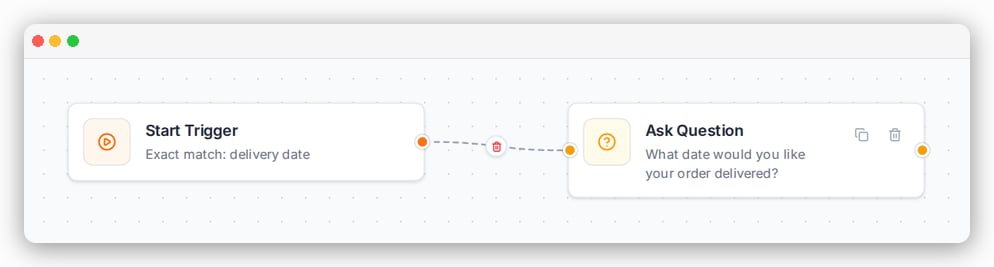
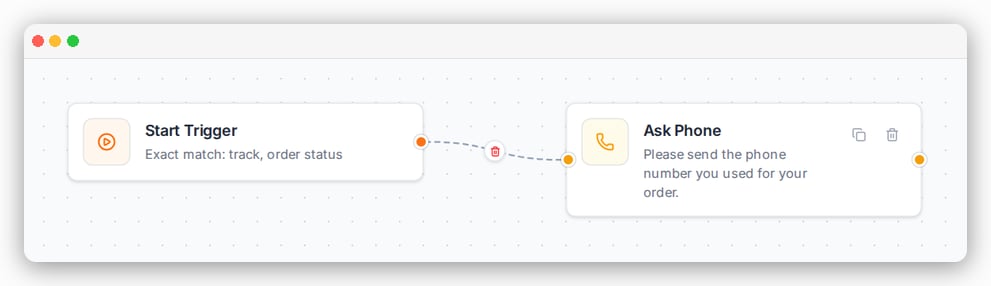
Ask Phone
What it does. Asks the customer for a phone number and checks that it’s valid. When to use it. Use it when you need to collect a phone number, such as for a callback or an alternate contact number. Required fields- Question and Capture Attribute are required. The format is already set to Phone for you.
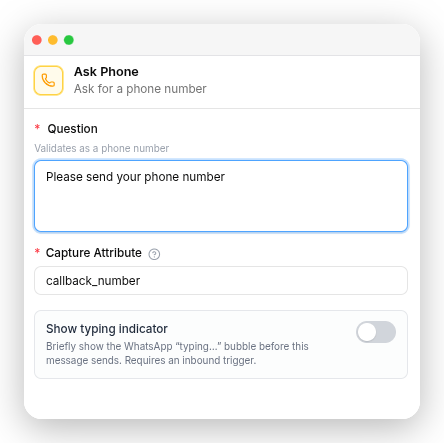
Question: Please send your phone number
Capture Attribute: callback_number
Ask Email
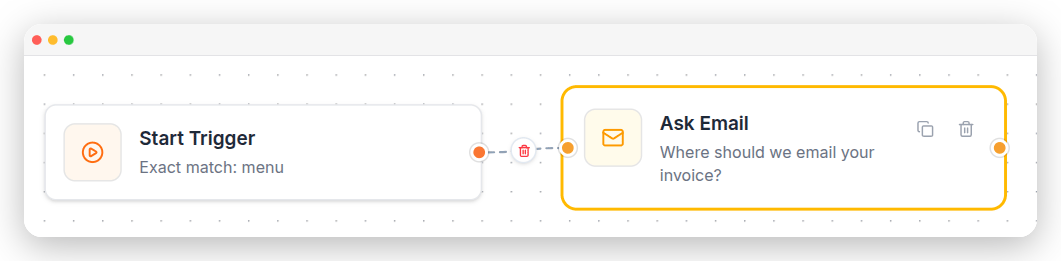
What it does. Asks the customer for an email address and checks that it’s valid. When to use it. Use it when you need the customer’s email address, such as for sending invoices, order receipts, or newsletters. Required fields- Question and Capture Attribute are required. The format is already set to Email for you.
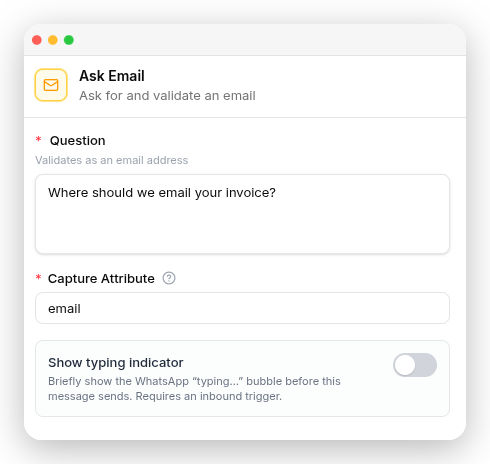
Question: Where should we email your invoice?
Capture Attribute: email
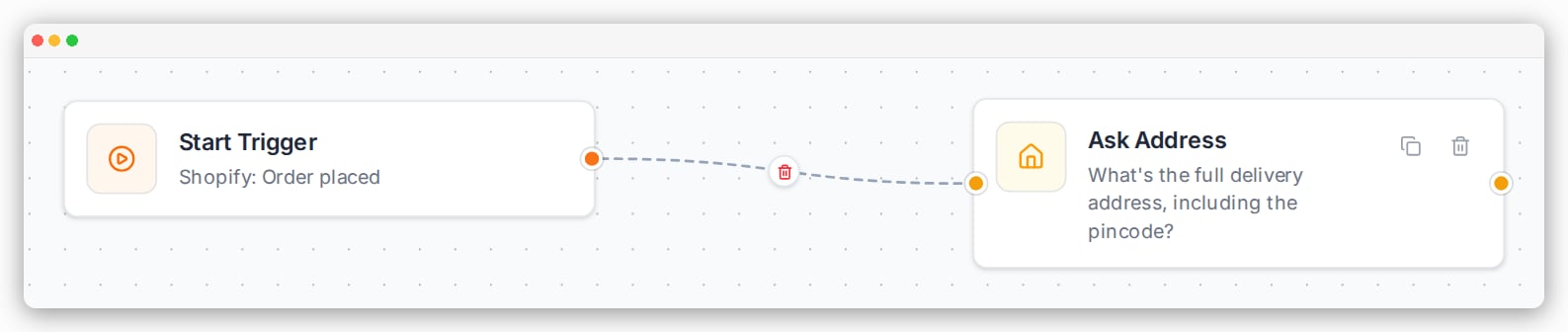
Ask Address
What it does. Asks the customer for their address. When to use it. Use it to collect a delivery address, service address, or any other location where you need to visit or deliver. Required fields- Question Message and Capture Attribute are required.
- Formatted Response Attribute is optional. Use it if you want to save the formatted address in a separate field.
- There are no validation or retry options for this step. The customer’s response is saved as it is.
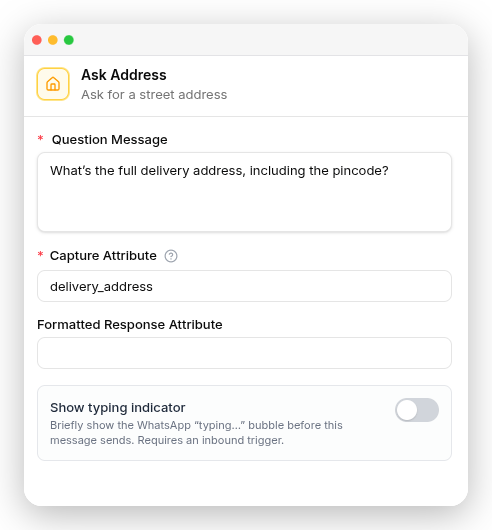
Question Message: What’s the full delivery address, including the pincode?
Capture Attribute: delivery_address
Ask Location
What it does. Asks the customer to share their actual GPS location using WhatsApp’s location button. When to use it. Use it when you need the customer’s exact location, such as for deliveries, pickups, or on-site services. Required fields- Question Message and Capture Attribute are required.
- There are no validation or retry options for this step. The customer’s response is saved as it is.
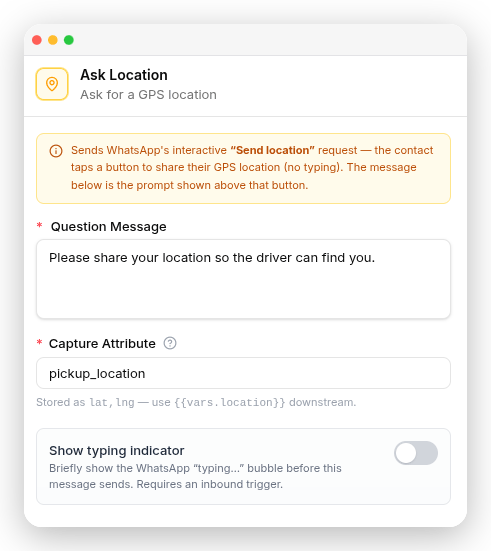
Question Message: Please share your location so the driver can find you.
Capture Attribute: pickup_location
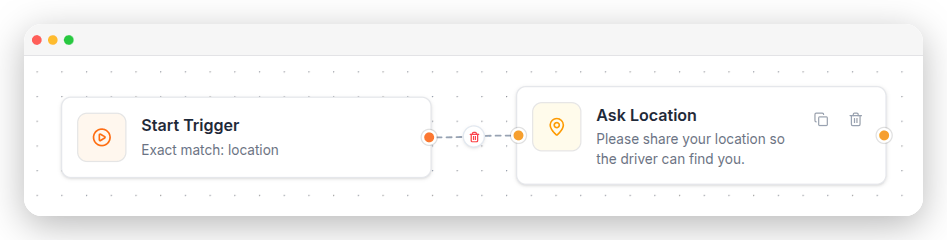
Ask Location is a WhatsApp-only step. It’s hidden on Messenger flows.
Ask Media
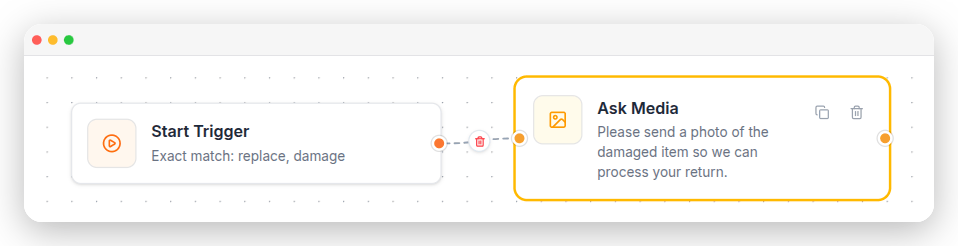
What it does. Asks the customer to upload a file. You can choose which file types are allowed, such as Image, Video, Audio, Document, or Sticker, or allow Any file. When to use it. Use it when you need customers to send files, such as photos of damaged items, ID documents, prescriptions, screenshots, or other supporting documents. Required fields- Media Question and Capture Attribute are required.
- Media Type defaults to Any, which accepts any file the customer sends.
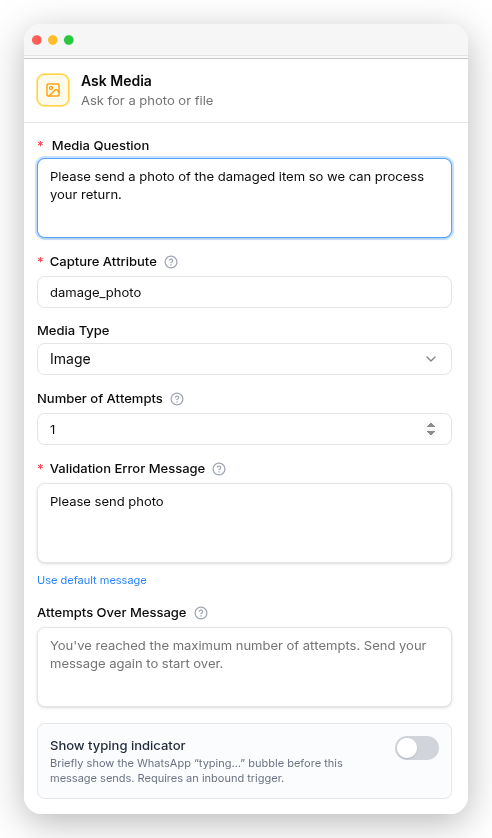
Media Question: Please send a photo of the damaged item so we can process your return.
Media Type: Image
Capture Attribute: damage_photo
Get Input
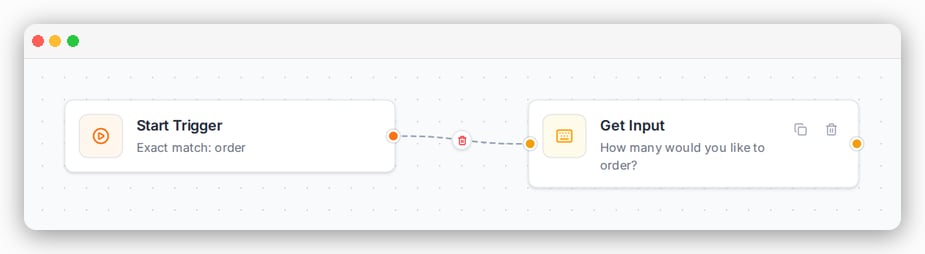
What it does. Collects a customer’s response and saves it. You can choose the type of answer to accept, such as text, number, email, phone number, URL, date, or any value. When to use it. Use it when you need to collect a simple answer without additional validation or settings. Required fields- Question and Capture Attribute are required.
- Attribute Format defaults to Any, which accepts whatever they send.
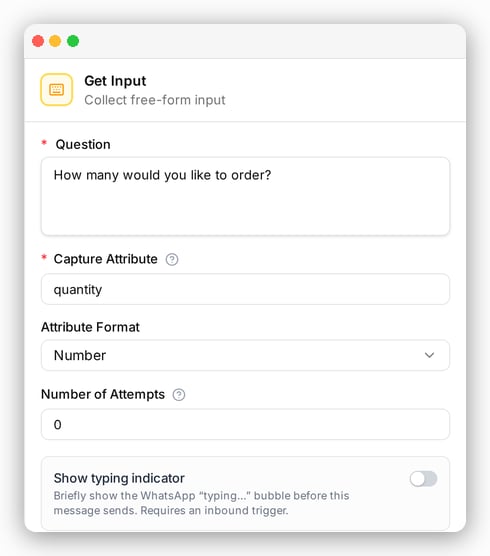
Question: How many would you like to order?
Attribute Format: Number
Capture Attribute: quantity
A worked example
A store takes a return request:- Button Message — “How can we help?” with
Return an item. - Ask Question (Text) — “What’s your order number?” →
order_number - Get Input (Number) — “How many items are you returning?” →
return_qty - Ask Question (Date) — “Which date can we pick it up?” →
pickup_date - Ask Phone — “What number can the courier call?” →
callback_number - Text Message — “Thanks ! We’ve noted your return of item(s) from order . The courier will collect it on .”

Show Typing Indicator
Show Typing Indicator — Available on every flow step in this category. When enabled, the customer sees a “typing…” indicator before your question is sent, making the conversation feel more natural. The typing indicator works on both WhatsApp and Messenger, but only when the customer has already started the conversation.What’s next
Advanced
Branch on the answers you just collected.
Integrations
Send the answers to Google Sheets or Google Calendar.