

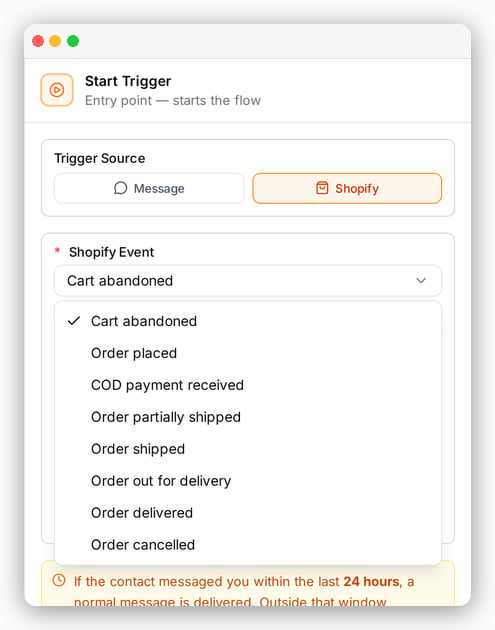
Order events you can use
Before you start
- Your store is connected.
- Your WhatsApp number is connected.
- You have an approved WhatsApp template for each update. Order updates usually fit the Utility category.
Build an order update
Create an automation
Go to Automations and create a new automation.
Set the trigger
Click the Start Trigger. Choose Shopify as the trigger source, then pick the event, for example Order shipped.
Add your template
Add a WhatsApp Template step and pick your approved message.
Add order details like the order number or tracking link. Type
@ to pick them.
See merge fields for the full list.Save and turn it on
Save the automation. It runs for every matching order from now on.
Ask for feedback after delivery
- Make an automation with the Order delivered event.
- Add a Delay step, for example 2 days.
- Add a template that asks how the order went.
How ChatFlows finds the customer
ChatFlows uses the phone number on the order to find the customer. If there is no customer with that number yet, one is created. Orders without a phone number don’t get a message.Common questions
Can I send Shopify order updates by SMS or email instead of WhatsApp?
Can I send Shopify order updates by SMS or email instead of WhatsApp?
No. ChatFlows sends Shopify order updates on WhatsApp only, from your connected WhatsApp number. Customers are matched by the phone number on the order.
Does ChatFlows change or cancel my orders in Shopify?
Does ChatFlows change or cancel my orders in Shopify?
No. ChatFlows only reads your store. It never changes your orders or products.
Do I need to change my Shopify theme to send order updates?
Do I need to change my Shopify theme to send order updates?
No. ChatFlows doesn’t add anything to your storefront or theme. Order events reach ChatFlows from Shopify itself.
Can I message a customer who has never contacted me on WhatsApp?
Can I message a customer who has never contacted me on WhatsApp?
Yes, with an approved template. WhatsApp requires the first message to a customer to be an approved template, and that is Meta’s rule, not ChatFlows’.
See Meta’s template rules.
Where to next
Template examples
Copy-ready wording for every order update.
Your Shopify dashboard
See how many messages were sent, delivered and read for each event.
Recover abandoned carts
Remind shoppers who left without paying.