

Steps
Install the app
Open ChatFlows: WhatsApp Automation in the Shopify App Store and click Install.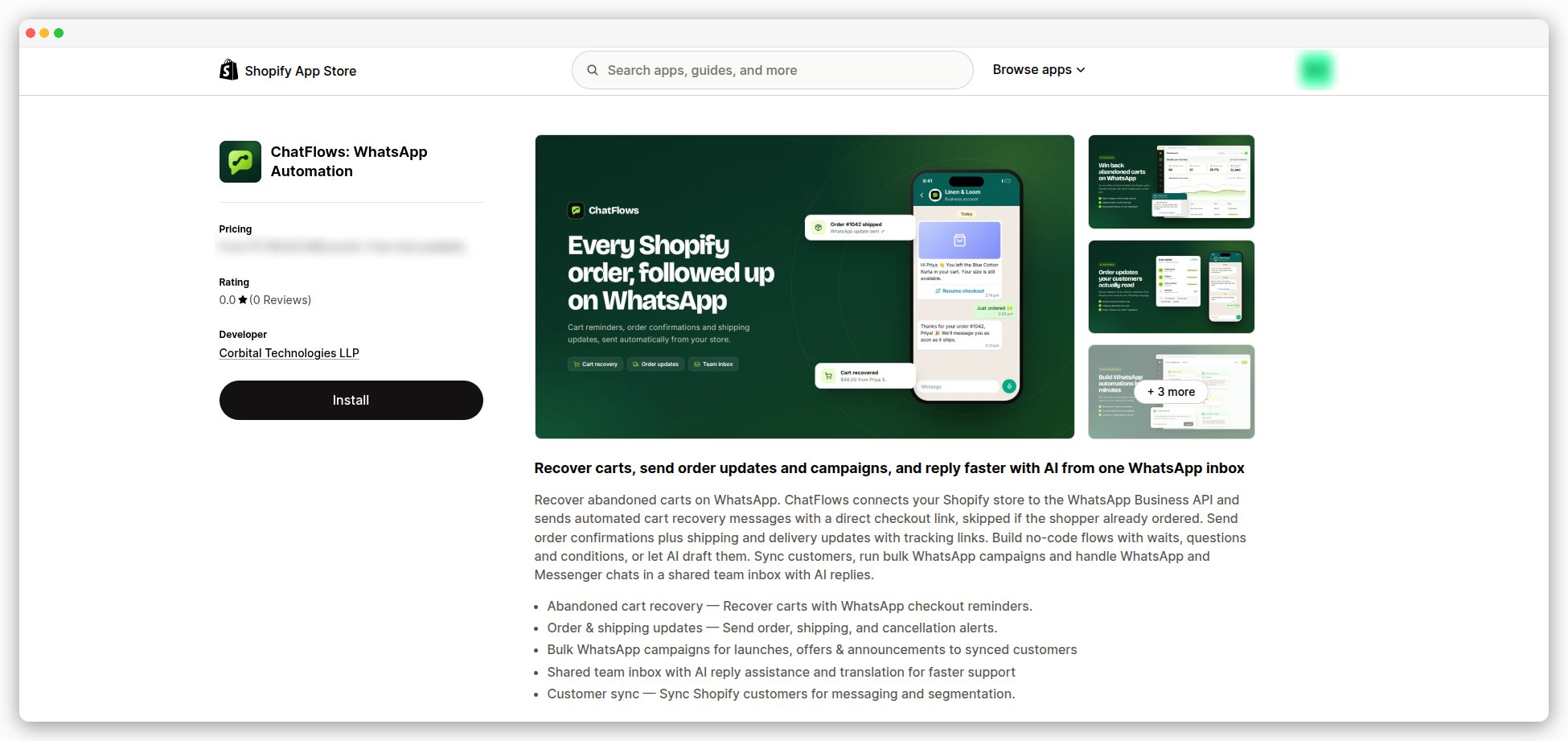
Approve the access
Shopify shows what ChatFlows can read in your store, like orders, checkouts and customers.
Approve it to continue. ChatFlows only reads your store. It never changes your products or orders.
Pick a plan
The Choose a plan screen opens. Choose Monthly or Yearly billing, then pick a plan.
A plan may come with a free trial.Under Your details, check your name, email, workspace name and country.
These are filled in from Shopify. The phone number is optional.Tick I agree to the Terms of Service and Privacy Policy, then click Continue to Shopify.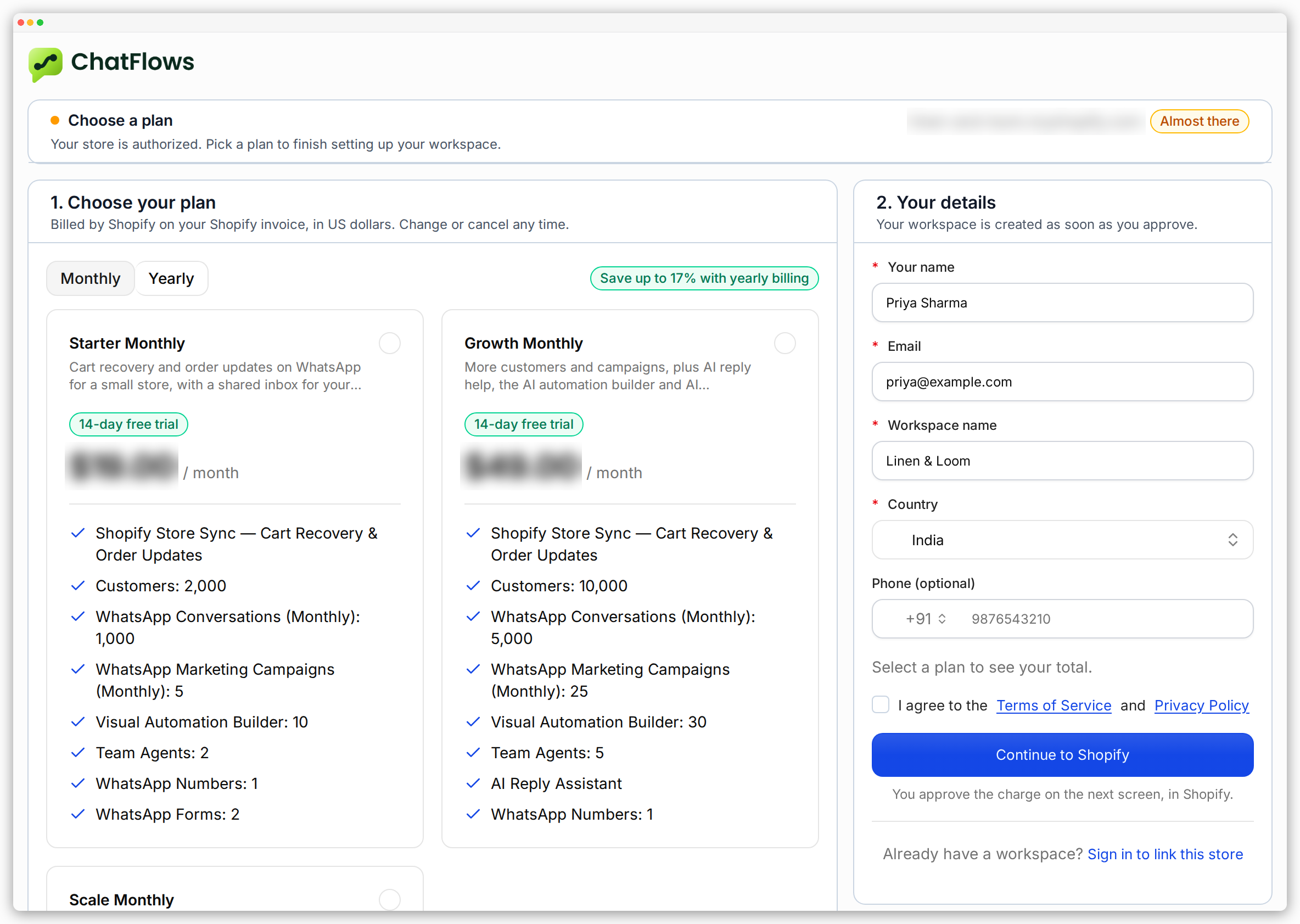
Approve the charge in Shopify
Shopify shows its own Approve subscription screen. It shows your plan, when your free trial ends, and the charge.If you have no payment method in Shopify yet, click Add payment method first. Then click Approve.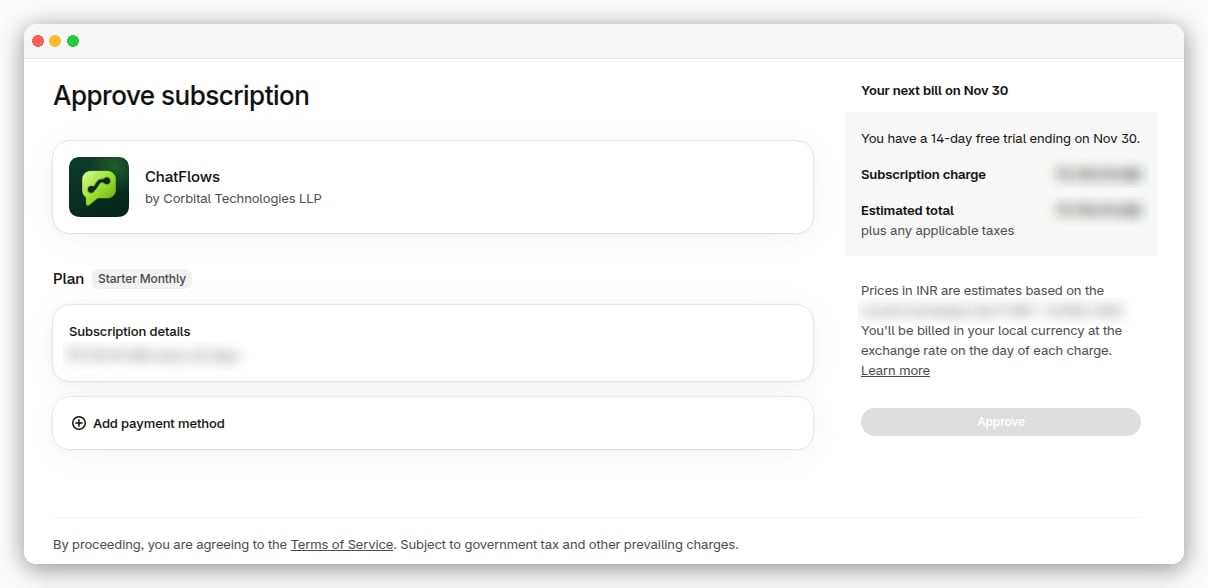
Open your dashboard
After you approve, Shopify brings you back to ChatFlows in your Shopify admin.
Your workspace is created and your store shows as Connected.Click Open dashboard. You are signed in to your workspace straight away. You don’t need a password.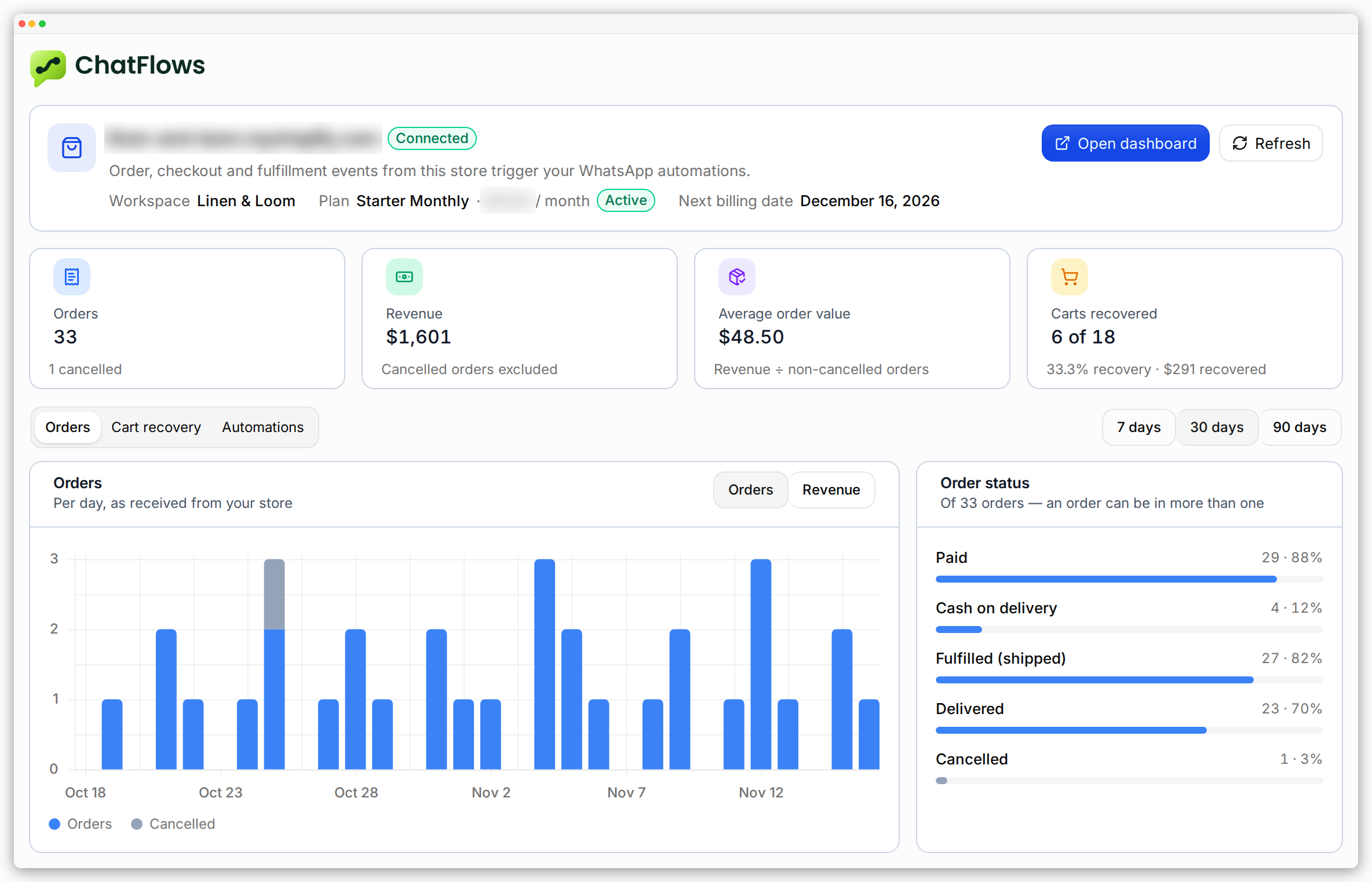
Set a password
Your dashboard shows a blue bar: Set a password to sign in without Shopify. Click Set a password.On the Set your password page, your email is already filled in.
Enter a password of at least 8 characters, with an uppercase letter, a lowercase letter, a number and a symbol. Enter it again, and click Set password.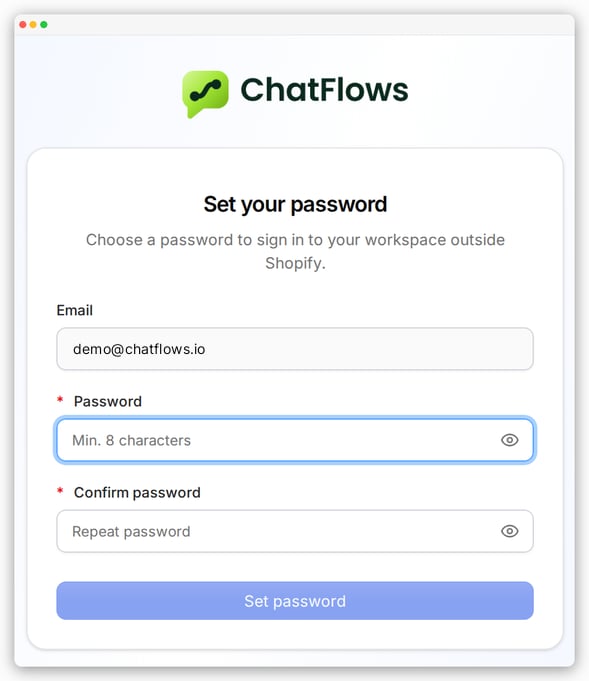
Done. Install the app → approve the access → pick a plan → approve in Shopify → open your dashboard. Your store is now connected.
What to do next
You do your real work in the dashboard: connect WhatsApp, write templates, build automations and reply to customers. See Your store and the Shopify app for what the app in Shopify shows.Common questions
I already have a ChatFlows workspace
I already have a ChatFlows workspace
On the plan screen, under Already have a workspace?, click Sign in to link this store.
After you sign in, the store is connected to your workspace.
Only the workspace owner can do this. Your billing stays the same.
Shopify declined the charge
Shopify declined the charge
You go back to the plan screen. Your details are kept. Pick a plan and try again.
I approved the charge, then closed the tab
I approved the charge, then closed the tab
Open ChatFlows from your Shopify admin again and click Check again.
ChatFlows also finishes setting up your workspace by itself, even if you do nothing.
I uninstalled the app and installed it again
I uninstalled the app and installed it again
Your store connects back to the same workspace. Nothing you built is lost.
I skipped setting a password
I skipped setting a password
That’s fine. Open ChatFlows from your Shopify admin and click Open dashboard to sign in.
You can set a password later from the blue bar in your dashboard.
You also get an email, Your workspace is ready, with a link to set your password. The link works for 7 days.
Where to next
Connect your WhatsApp number
Nothing can be sent until a number is connected.
Recover abandoned carts
Remind shoppers who left without paying.