

Before you can add a template, you need to connect a WhatsApp channel to your workspace.
Adding a Template
- Sync Templates – If you’ve already created templates in your Meta Business account and that account is connected to your WhatsApp channel, click Sync Templates to import them into ChatFlows.
- Add Template – Click Add Template to create a new template directly in ChatFlows.
If you have more than one connected channel, clicking Sync Templates opens a menu where you can choose Sync all accounts or select a specific channel to sync.
Template Collection
The Template Collection is a set of pre-built templates for common use cases, organized into Header, Carousel, and Authentication tabs.- Use Template – Opens it as an editable draft. Enter a template name, adjust the content as needed, then submit it for approval.
- Favourite (star icon) – Saves it under the My Favourites tab for quick access.
Creating a template
After clicking Add Template, choose one of three template types:- Header Template – For marketing and utility messages like offers, updates, and notifications.
- Carousel Template – For displaying multiple products or a catalog in scrollable cards.
- Authentication – For sending OTP codes for user verification.
Header Template
A Header Template allows you to include an image, video, document, or text header in your WhatsApp message, making it ideal for marketing and utility messages.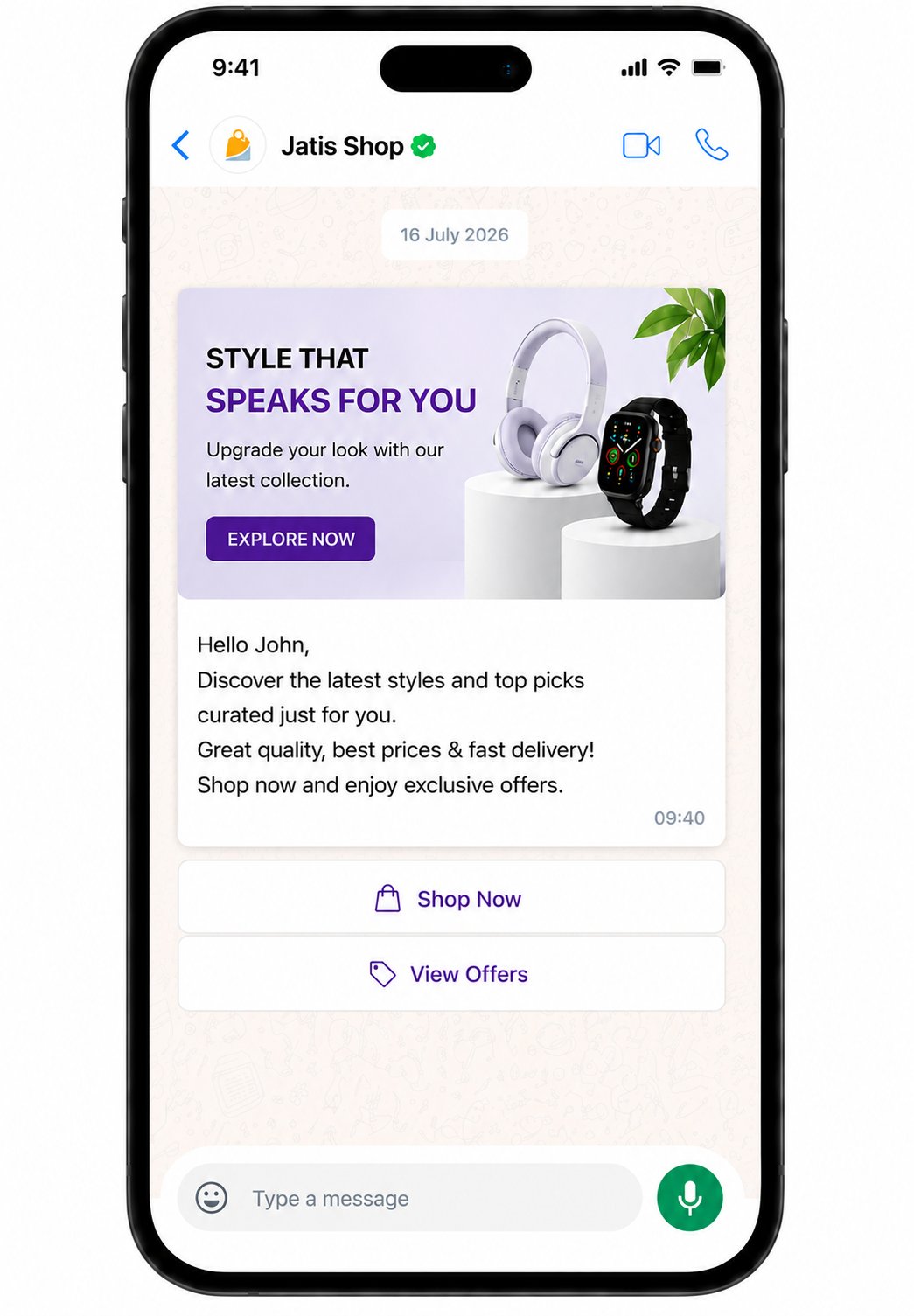
1
Fill in Basic Info
Enter the basic details for your template:
- Channels – Select the connected WhatsApp account that the template belongs to.
- Template Name – Enter a unique name using only lowercase letters, numbers, and underscores (for example,
order_confirmation). - Language – Select the language of your template content. Make sure the message is written in the selected language to avoid template rejection during Meta’s review.
- Category – Choose the category that best matches the purpose of your message:
- Marketing – Promotional messages such as offers, discounts, product launches, and announcements.
- Utility – Transactional messages such as order updates, delivery updates, account alerts, and payment confirmations.
2
Build the Header
Add an optional header to your message — Text (up to 60 characters), Image, Video, or Document.A text header should be plain text only. Per Meta’s rules, header text can’t contain emojis.
Supported formats and file size limits are set by Meta. See Meta’s supported media types for the current limits.
3
Write the Message Body
The main message content of your template, up to 1,024 characters. Use the toolbar to format text with bold, italic, strikethrough, or code.To insert dynamic values, click + Add Variable to add placeholders like
{{1}} and {{2}}.Each variable appears in a Detected Variables list below the body. ChatFlows assigns each a sample value (like “Value 1”) for Meta’s review — these aren’t sent to customers.When you send the template, each variable is replaced with real data, such as a merge field (the contact’s name) or a fixed value.4
Add a Footer (optional)
An optional line of fixed text that appears below the message body, up to 60 characters.Variables are not allowed in the footer.
5
Add Buttons (optional)
Add up to 10 buttons to let customers take action. There are four types:
- Quick Reply – A tappable button that lets the customer reply instantly with the button’s text, instead of typing.
- Website URL – Opens or redirects to a website link.
- Phone Number – Starts a call to the number you set.
- Flow (interactive form) – Opens a WhatsApp Form the customer fills in without leaving the chat. Lists the published forms on the selected account.
Carousel Template
A Carousel Template lets you showcase multiple products, services, or items using scrollable cards in a single WhatsApp message.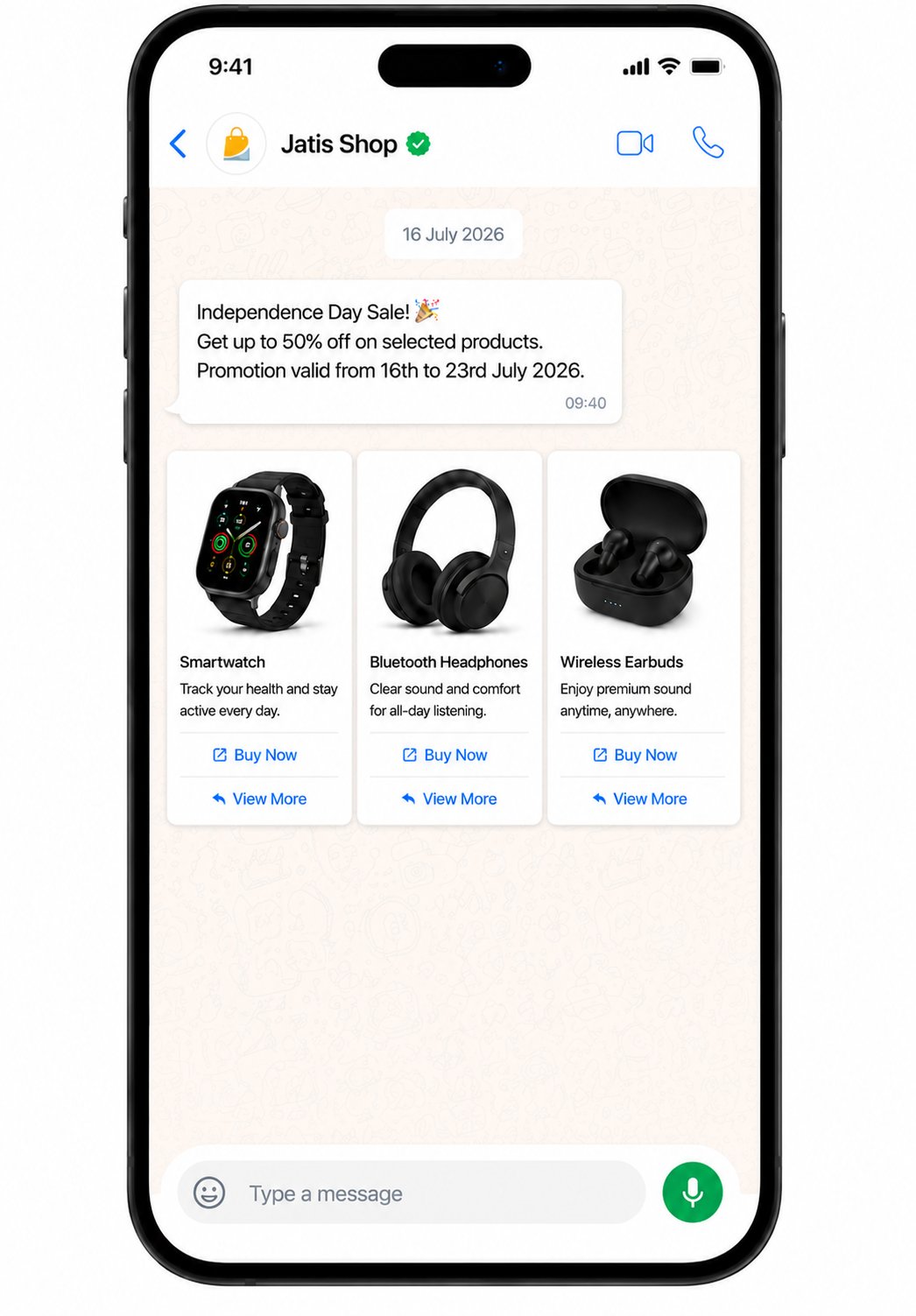
1
Fill in Basic Info
Enter the channel, name, and language — same as in the Basic Info step. For carousel templates, the category is fixed to Marketing.
2
Write the Message Body
The main message text that appears above the cards, up to 1,024 characters. Formatting and variables work the same as in the Body step.
3
Build the Cards
Add 2–10 cards. Each card has:
- Header – An image or video (formats and size limits are set by Meta).
- Body text – Up to 160 characters.
- Buttons – 1–2 buttons (Quick Reply or URL).
Authentication
An Authentication Template lets you send one-time passcodes (OTPs) to verify a user’s identity.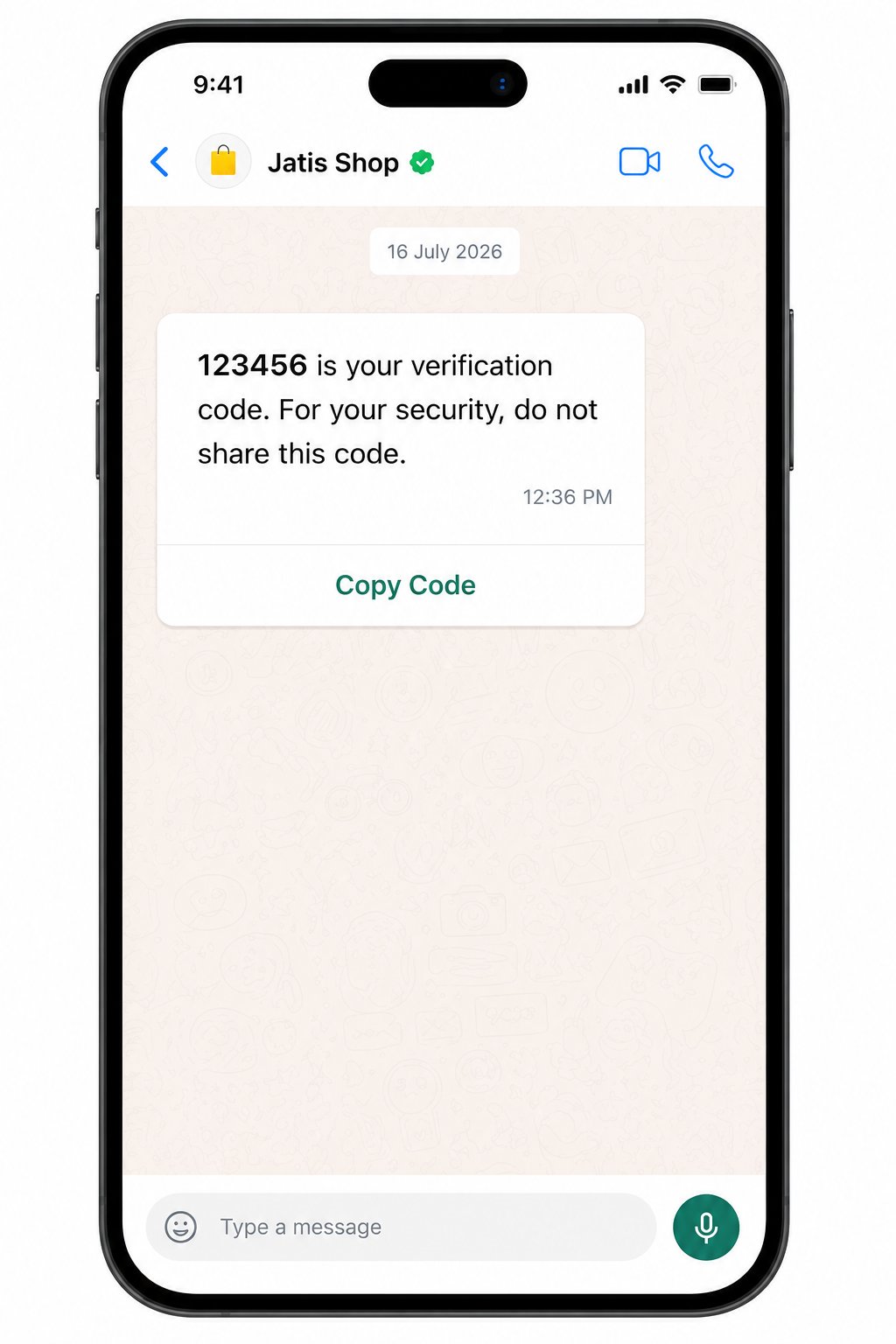
1
Fill in Basic Info
Enter the channel, name, and language for your template. For authentication templates, the category is fixed to Authentication.
2
Configure the OTP
Choose how the user receives and enters the code. There are three OTP button types:
- Copy Code – The user copies the code and pastes it manually. Works on all devices, including iOS and web.
- One-Tap Autofill – The user taps a button and the code is filled in automatically. Android app only.
- Zero-Tap – The code is verified automatically, with no user action. Android app only.
- Button Text – The label on the OTP button, up to 25 characters.
- Code Expiry – How long the code stays valid (1–90 minutes).
- Message TTL – How long WhatsApp retries delivery (30–900 seconds).
- Security recommendation – Optional toggle that adds a “do not share this code” note.
- Android Package Name and App Signature Hash – Required for One-Tap and Zero-Tap.
- Accept Zero-Tap Terms – Required only when you choose Zero-Tap.
Submitting for approval
Once your template is created, submit it to Meta for review. The template first appears as Pending while Meta reviews it. When the review is complete, its status updates automatically to Approved, Rejected, Paused, or Disabled.Whenever Meta updates your template’s status — approved, rejected, paused, or disabled — ChatFlows notifies you automatically. An on-screen notification appears and it’s added to your notifications so you can review it anytime.
Managing existing templates
Use the row menu on any template to:- View Stats — open the template’s analytics panel to see sent, delivered, read, and clicked figures over a chosen date range.
- Edit the template’s content and resubmit it. Editing an approved template sends it back to Meta for review — its status returns to Pending and it must be approved again before you can use the updated version.
- Delete a template.
View Stats is available only when analytics is enabled for your WhatsApp Business Account. If analytics is turned off, enable it in WhatsApp Manager and try again.
Common questions
How long does WhatsApp template approval take?
How long does WhatsApp template approval take?
Meta decides, and the time varies from template to template. ChatFlows shows the template as Pending until Meta finishes its review, then updates the status and notifies you.
See Meta’s template rules.
What happens if Meta rejects my WhatsApp template?
What happens if Meta rejects my WhatsApp template?
ChatFlows marks the template Rejected and notifies you. You can edit the content and submit it again, or delete it and start over.
The name, language and category can’t be changed after you submit.
Can I choose whether my WhatsApp template is Marketing or Utility?
Can I choose whether my WhatsApp template is Marketing or Utility?
You pick a category when you create the template, but Meta makes the final decision on its category. Carousel templates are always Marketing, and Authentication templates are always Authentication.
Meta explains the categories in its template overview.
Can I use the WhatsApp templates I already made in Meta?
Can I use the WhatsApp templates I already made in Meta?
Yes. Click Sync Templates and ChatFlows imports the templates from the Meta Business account connected to your WhatsApp channel.
If you have more than one channel, you can sync all of them or just one.
Do I need approval again if I edit a WhatsApp template?
Do I need approval again if I edit a WhatsApp template?
Yes. Editing an approved template sends it back to Meta, and its status returns to Pending.
You can use the updated version only after Meta approves it again.
What’s next
Campaigns
Use an approved template to broadcast to a list of contacts.
Messenger Templates
See how Messenger’s local, non-Meta-approved presets work instead.