

- The ChatFlows app in your Shopify admin shows your store’s status and sales, and opens your dashboard in one click.
- Settings → Shopify in your workspace is where you sync your customers and disconnect the store.
Find the app
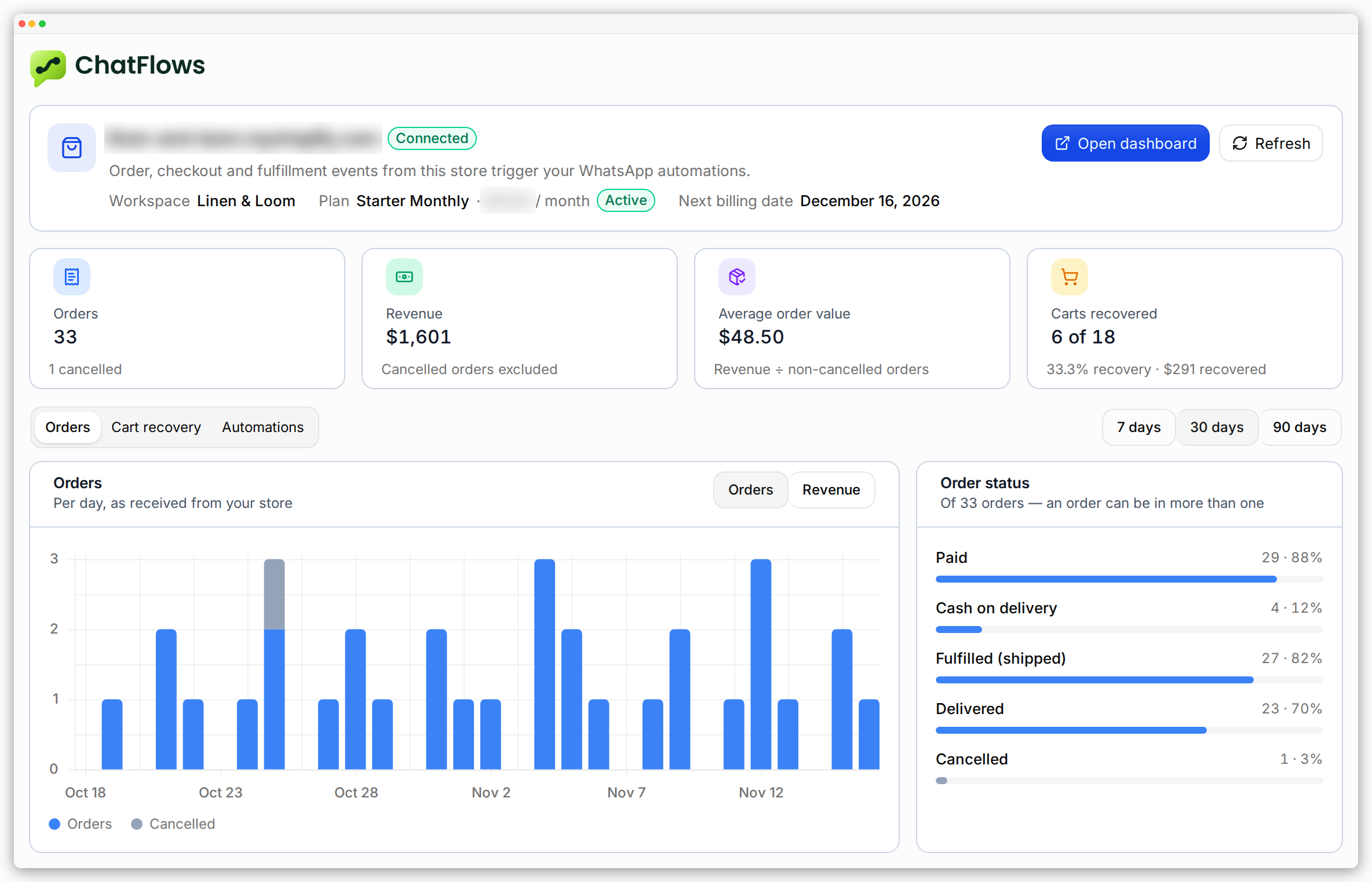
In your Shopify admin, click ChatFlows under Apps in the left menu. The app has three pages: Overview, Setup and Plan & billing.Overview
This is the page you see first. It shows:- Your store, its connection status, and your workspace.
- Your plan, its status, and the next billing date.
- Orders, Revenue, Average order value and Carts recovered.
- One chart with three tabs: orders, cart recovery, and automations.
Setup
This page shows how your store is connected and what is left to set up.- Store connection shows your store, your workspace, when it was connected, and which Shopify app it uses.
- Permissions shows what ChatFlows may read from your store: Orders and checkouts, and Delivery updates. Each one shows Granted when it’s on.
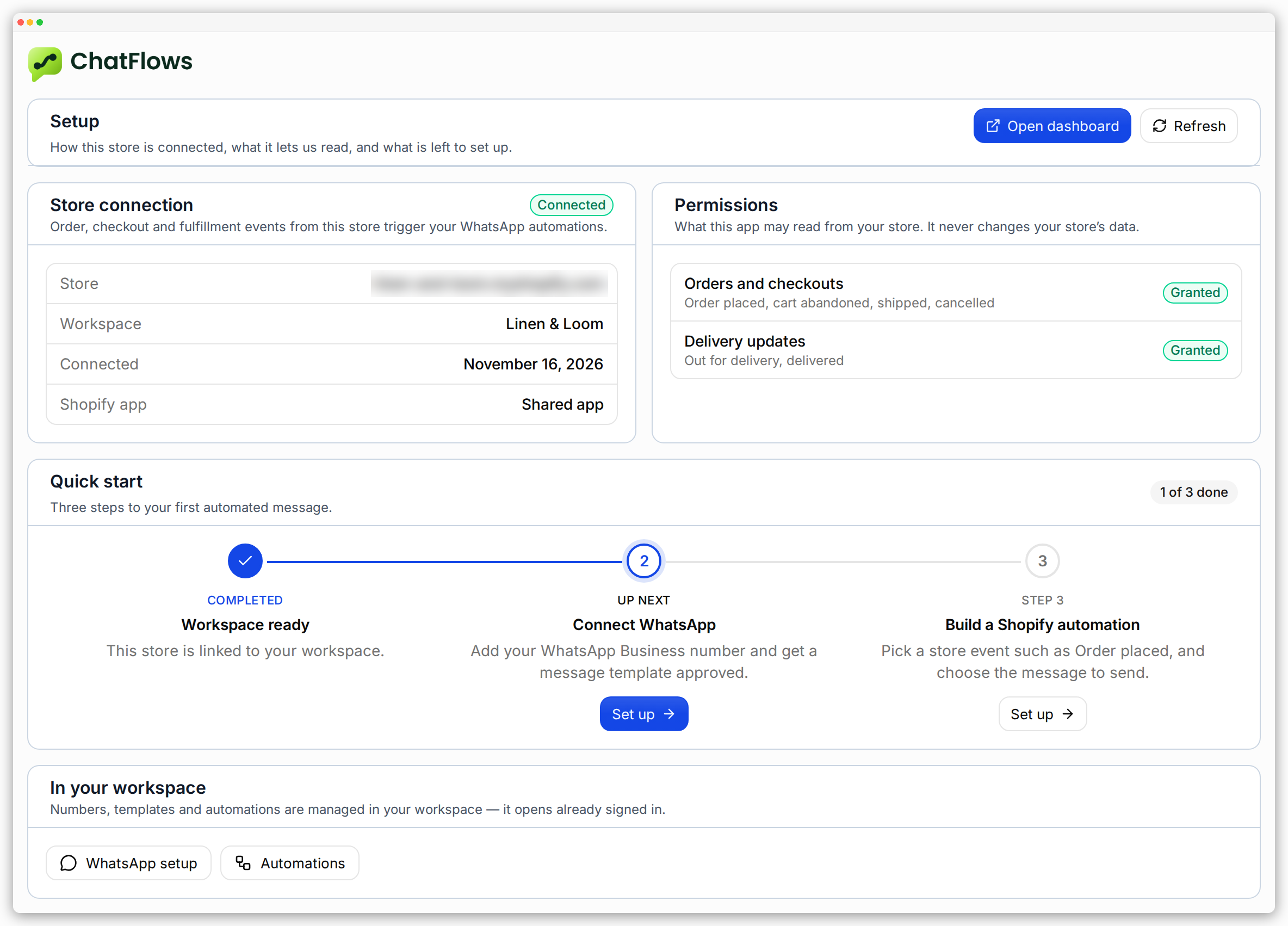
- If the connection has a problem, you see the reason. Click Reconnect to connect through Shopify again.
- Retry setup opens the Shopify page in your dashboard to finish the setup.
- If you see Delivery updates are off, your store was connected before ChatFlows asked for delivery access. The Order out for delivery and Order delivered automations can’t run. Reconnect the store once to turn them on.
Plan & billing
This page shows your Current plan and a Billing summary with the next charge, and a View invoices link. Under Change plan, you can move to another plan.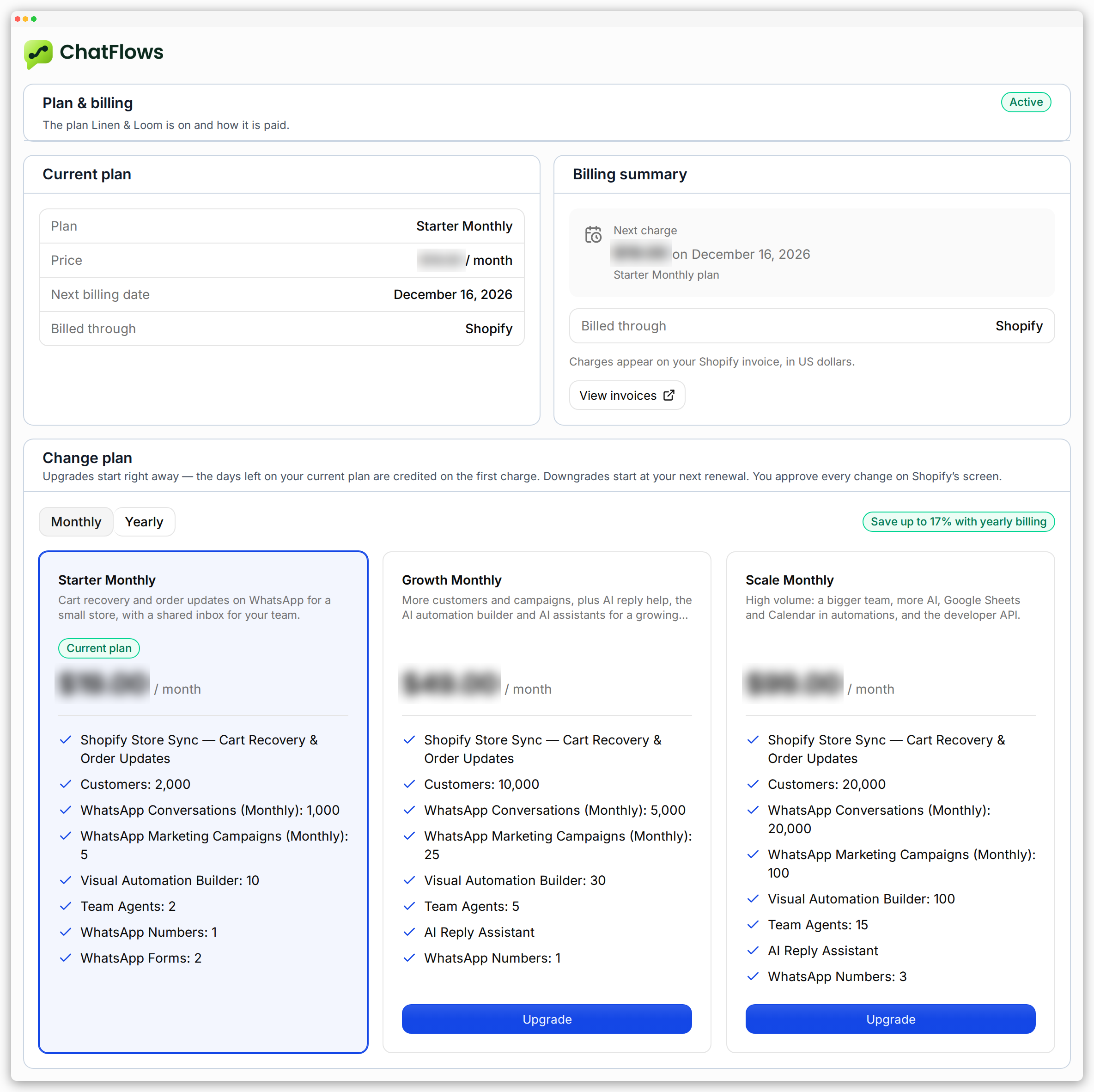
Open your dashboard
Click Open dashboard to go to ChatFlows. You are signed in as the workspace owner. You don’t need a password.Anyone who can open ChatFlows in your Shopify admin can use Open dashboard.
Give app access in Shopify only to staff you trust.
Your store in your workspace
In your workspace, go to Settings → Shopify. The store card shows one of these:- Connected — everything works. Store events can start your automations.
- Connecting… — setup is still finishing. It changes to Connected a moment later.
- Needs attention — something stopped working. The card shows the reason Shopify gave. Click Reconnect to approve ChatFlows again in Shopify, or Retry setup to run the setup again.
Shoppers can only get WhatsApp messages if your Shopify checkout asks for a phone number.
Bring in your Shopify customers
On Settings → Shopify, click Sync contacts to bring the customers already in your store into Customers. Only customers with a phone number are brought in. The rest are skipped. If a customer has tags in Shopify, they come across as customer tags.Disconnect your store
On Settings → Shopify, click Disconnect and confirm. Shopify events stop starting your automations right away. Uninstalling ChatFlows from your Shopify admin also disconnects the store and cancels your plan. Your customers stay in your workspace, and your automations are not deleted. If you connect the store again later, your automations work again.Common questions
Does ChatFlows change my Shopify products, orders or settings?
Does ChatFlows change my Shopify products, orders or settings?
No. ChatFlows only reads your store: the Orders and checkouts and Delivery updates permissions are read access.
See Setup.
Do I need to change my Shopify theme to use ChatFlows?
Do I need to change my Shopify theme to use ChatFlows?
No. ChatFlows doesn’t add anything to your storefront or theme.
Can I open ChatFlows without going through my Shopify admin?
Can I open ChatFlows without going through my Shopify admin?
Yes, once you set a password. Your dashboard offers Set a password to sign in without Shopify, so you can sign in from any browser.
See Open your dashboard.
Where to next
Send order updates
Tell buyers when their order is placed, shipped, out for delivery or delivered.
Recover abandoned carts
Build your first Shopify automation.